Git Commands Cheat Sheet – Complete Guide to Master Git Basics & Advanced Commands

Introduction
Git is one of the most essential tools in today’s IT industry. Whether you are working in software development, DevOps, or data science, Git plays a crucial role in managing and tracking changes in your project files. Every modern project needs proper version control, and Git is the most popular solution for that purpose.
This Git Commands Cheat Sheet is designed to help beginners as well as working professionals understand Git file management easily. You can use this guide as a quick reference while learning Git and also when you start using it in real-world projects. Even if you are completely new to Git, this cheat sheet will make things simple and practical.
What is Version Control?
Version control, also called source control, is the process of tracking, managing, and maintaining changes made to files over time. It helps teams collaborate efficiently without overwriting each other’s work.
From a technical point of view, version control manages different versions of code, documents, and configurations, ensuring complete history and recovery options.

Functions of a Version Control System (VCS)
A VCS helps developers to:
Work on the same project simultaneously
Prevent conflicts and accidental overwrites
Maintain a complete change history
Roll back to previous versions when required
Types of Version Control Systems
There are two major types:
| Centralized VCS (CVCS) | Distributed VCS (DVCS) |
| Uses a single central server | Each developer has a full local repository |
| Requires constant server connection | Most operations work offline |
| Slower performance | Faster and more reliable |
| Server failure can cause data loss | Local copies ensure data safety |
Git belongs to the Distributed Version Control System (DVCS) category.
What is Git?
Git is a free and open-source version control tool created by Linus Torvalds in 2005. It helps developers track changes in projects and collaborate efficiently.
Git allows non-linear development, meaning developers can work on multiple features simultaneously using branches. This makes Git extremely powerful for both small and large projects.
According to Stack Overflow surveys, over 90% of developers worldwide use Git as their primary version control tool.
Install Git and GUI Tools
Git is available on Windows, macOS, and Linux. On macOS and Linux, Git is often pre-installed.
Install Git on macOS
- Install Homebrew:
/bin/bash -c "$(curl -fsSL https://raw.githubusercontent.com/Homebrew/install/HEAD/install.sh)"
- Install Git:
brew install git
Install Git on Windows
- Download Git from:
https://git-scm.com/download/win
- Run the installer and follow the setup instructions.
Install Git on Linux
For Ubuntu:
sudo apt-get install git
For other distributions, refer to:
https://git-scm.com/download/linux
Git in DevOps
Git is a core tool in the DevOps lifecycle, especially during the Plan and Code phases.
The DevOps lifecycle includes:
Plan
Code
Build
Test
Release
Deploy
Operate
Monitor
Git enables Continuous Integration and Continuous Delivery (CI/CD) by allowing teams to collaborate, review code, and manage changes efficiently. It improves code quality, reduces errors, and enhances team productivity.
Key Git Terminologies
Before using Git commands, understanding common terms is important:
Local Repository – Project directory on your local machine
Remote Repository – Online repository hosted on platforms like GitHub
Clone – Copying a remote repository locally
Commit – Snapshot of staged changes
Branch – Independent line of development
Merge – Combining branches
Staging Area – Area where changes wait before commit
.gitignore – File to exclude unwanted files
Stash – Temporary storage of changes
Commit Hash – Unique ID for each commit
HEAD – Pointer to the latest commit
Branches in Git
Branches allow developers to work on new features without affecting the main codebase.
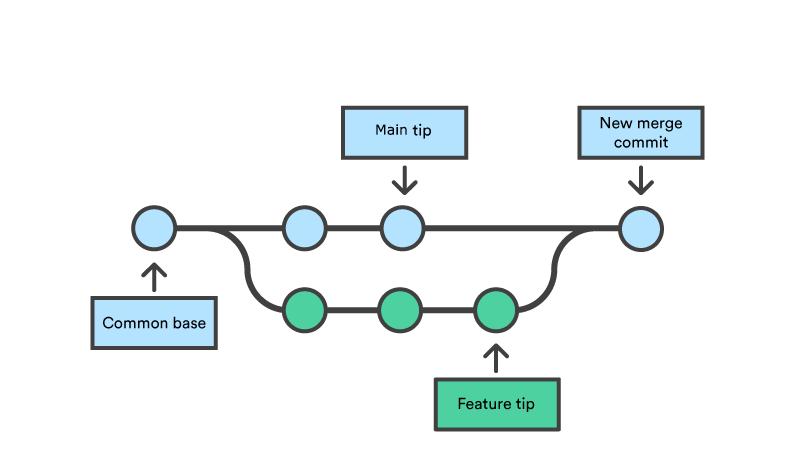
The main branch contains stable production code
Feature branches are created for new development
After testing and review, feature branches are merged back into main
This workflow improves collaboration and reduces bugs.
Git Life Cycle
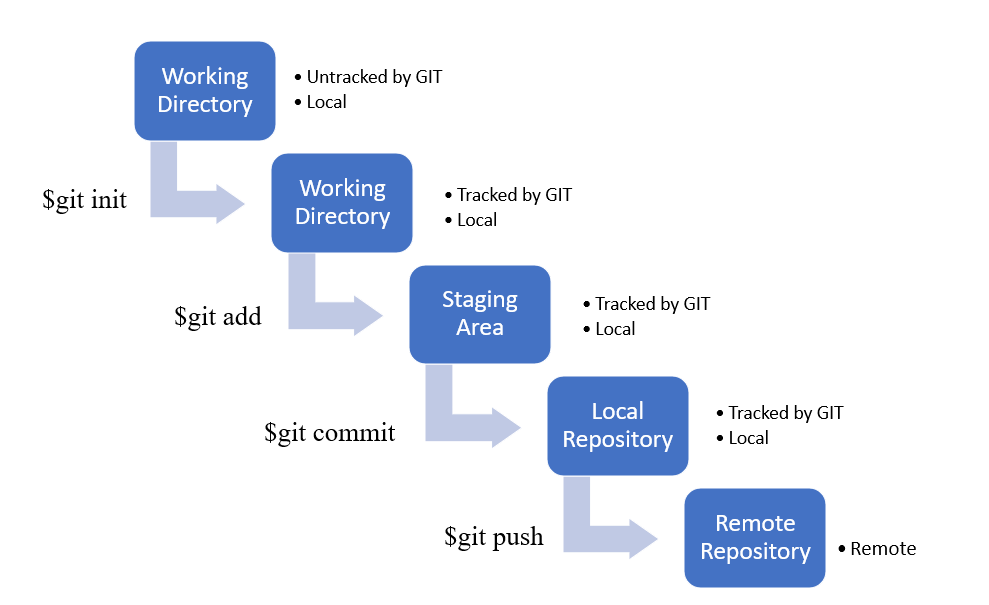
The Git lifecycle follows these steps:
Clone repository from remote
Make changes to files
Pull latest updates from remote
Review and stage changes
Commit changes with a message
Features of Git
Git offers several powerful features:
Supports multiple developers simultaneously
Fast and lightweight
Enables non-linear workflows
Works offline
Highly reliable and secure
Open-source and widely supported
Git Commands Cheat Sheet
1. Git Configuration
| Command | Description |
git config --global user.name "Name" | Set username |
git config --global user.email "email" | Set email |
git config --list | View configurations |
2. Repository Setup
| Command | Description |
git init | Initialize repository |
git clone URL | Clone repository |
3. Staging & Commit
| Command | Description |
git status | Check file status |
git add file | Add file |
git commit -m "msg" | Commit changes |
git diff | View changes |
4. Branching & Merging
| Command | Description |
git branch | List branches |
git checkout -b branch | Create & switch branch |
git merge branch | Merge branch |
5. Inspect & Compare
| Command | Description |
git log | View commit history |
git show SHA | Show commit details |
6. Share & Update
| Command | Description |
git pull | Fetch & merge updates |
git push origin branch | Push changes |
7. Rewrite History
| Command | Description |
git rebase branch | Reapply commits |
git reset --hard commit | Reset history |
8. Temporary Commits (Stash)
| Command | Description |
git stash | Save changes |
git stash pop | Restore changes |
git stash clear | Remove all stashes |
9. Advanced Branch Management Commands
These commands are useful when working with large teams and multiple branches.
| Command | Description |
git branch --merged | Lists branches already merged into the current branch |
git branch --no-merged | Shows branches not yet merged |
git switch branch-name | Switch branches (modern alternative to checkout) |
git switch -c new-branch | Create and switch to a new branch |
git worktree add path branch | Work on multiple branches simultaneously |
Use case: Helpful when handling hotfixes and parallel feature development.
10. Advanced Commit & History Commands
These commands help you clean, edit, and analyze commit history.
| Command | Description |
git commit --fixup <commit> | Create a fixup commit for autosquash |
git rebase -i HEAD~n | Interactive rebase for editing commit history |
git cherry-pick <commit> | Apply a specific commit to another branch |
git blame file-name | Shows who changed each line of code |
git reflog | Displays reference logs (life saver!) |
Pro Tip: git reflog can recover lost commits after mistakes.
11. Advanced Remote Repository Commands
These commands help manage remotes efficiently.
| Command | Description |
git remote -v | Show all remote URLs |
git remote rename old new | Rename a remote |
git fetch --prune | Remove deleted remote branches locally |
git push --force-with-lease | Safer force push |
git pull --rebase | Pull changes without merge commits |
Always prefer --force-with-lease over --force.
12. Advanced Stash Commands
Stashing becomes powerful with these advanced options.
| Command | Description |
git stash push -m "message" | Stash with a message |
git stash show -p | View detailed stash changes |
git stash apply stash@{n} | Apply a specific stash |
git stash branch branch-name | Create branch from stash |
Ideal for quick context switching between tasks.
13. Undo & Recovery Commands (Very Important)
Mistakes happen. These commands save hours of panic.
| Command | Description |
git reset --soft HEAD~1 | Undo commit, keep changes staged |
git reset --mixed HEAD~1 | Undo commit, keep changes unstaged |
git revert <commit> | Safely undo a commit |
git checkout commit -- file | Restore a file from a commit |
git restore file-name | Restore file (new syntax) |
git revert is preferred for shared branches.
14. Advanced Diff & Debugging Commands
Used to deeply analyze code changes.
| Command | Description |
git diff --name-only | List changed files |
git diff --stat | Show change summary |
git diff commit1 commit2 | Compare commits |
git bisect start | Find bug using binary search |
git bisect good/bad | Mark commits during bisect |
git bisect is extremely powerful for debugging production issues.
15. Performance & Cleanup Commands
Keep your repository clean and optimized.
| Command | Description |
git gc | Cleanup unnecessary files |
git prune | Remove unreachable objects |
git fsck | Check repository integrity |
git count-objects -vH | Repository size analysis |
How Do Git Commands Work?
Git commands move files through Working Directory → Staging Area → Repository. Each command plays a role in tracking, saving, and sharing changes efficiently.
Conclusion
This Git Commands Cheat Sheet is designed to boost your productivity and confidence while working with Git. You don’t need to memorize every command—just bookmark this guide and use it whenever required.
With regular practice, Git will become second nature to you.
Happy coding and best of luck!